
GridView inside GridView in ASP.Net (Nested GridView)
The GridView control is an important control which widely used in web development applications. GridView is nothing more than a collection of items that indicate what properties from the data sources are included in the render output along with how the data will be displayed. This is the GridView view mode displays a list of data items by binding data fields to columns and by displaying a column header to identify the field. There are lots of fields that play an important role to bind data with the data source (SQL DataSource or DataBase) some namely, Bound field, Template field, Image Field, etc.
And here I am focusing on how we can use GridView inside GridView i.e nested gridview. Let’s see the brief demonstration on the use of nested gridview.
Step 1: Open Visual Studio and select a new project from the File menu and select the website.
Step 2: After creating successful new project drag gridview from the toolbox and drop it on the web page where you want.
After successfully drag gridview on the page you can perform many tasks such as
you can edit the format of gridview , edit columns and many more.

Here when you click on the Auto Format then following window will be appear
where you have more choice like
Now when you click on edit columns then following window will appear where you can add different types of fields
Here I am adding three template fields.
Step 3: Now for performing nested gridview or gridview inside gridview you can write the following code.
         <asp:GridView ID="GridView1" runat="server" AutoGenerateColumns="False"

             CellPadding="4"  EnableModelValidation="True"
             ForeColor="#333333" GridLines="None" onrowcommand="GridView1_RowCommand" onrowcancelingedit="GridView1_RowCancelingEdit"

             >
             <AlternatingRowStyle BackColor="White" />
             <Columns>
                 <asp:TemplateField HeaderText="Department_Id">
                     <EditItemTemplate>
                         <asp:TextBox ID="TextBox1" runat="server" Text='<%# Bind("did")   %>'></asp:TextBox>
                     </EditItemTemplate>
                     <ItemTemplate>
                         <asp:Label ID="Label1" runat="server" Text='<%# Bind("did")   %>'></asp:Label>
                     </ItemTemplate>
                 </asp:TemplateField>
                 <asp:TemplateField HeaderText="Department_Name">
                     <EditItemTemplate>
                         <asp:TextBox ID="TextBox2" runat="server" Text='<%# Bind("department")   %>'></asp:TextBox>
                     </EditItemTemplate>
                     <ItemTemplate>
                         <asp:Label ID="Label2" runat="server" Text='<%# Bind("department")   %>'></asp:Label>
                     </ItemTemplate>
                 </asp:TemplateField>

                 <asp:TemplateField HeaderText = "Details">
                      <ItemTemplate>

                        <asp:Button ID ="btn_Show" Text="Details" runat= "server" CommandName= "Details" CommandArgument='<%# Container.DataItemIndex%>' />
                        <asp:Button ID ="Cancel" Text="Cancel" runat= "server" CommandName= "Cancel" CommandArgument='<%# Container.DataItemIndex%>' Visible="false" />
                       <%--child gridview with bound fields --%>
                        <asp:GridView ID="GridView2" runat="server" AutoGenerateColumns="False"
              CellPadding="4"  EnableModelValidation="True"
             ForeColor="#000000" GridLines="Both">
                         <Columns>
                           <asp:BoundField DataField="Emp_Id" HeaderText= "Emp_Id" >
                           <ItemStyle Width = "20%" />
                           </asp:BoundField>
                           <asp:BoundField DataField="Dep_Name" HeaderText= "Dep_Name" >
                           <ItemStyle Width = "20%" />
                           </asp:BoundField>
                           <asp:BoundField DataField="Name" HeaderText= "Name" >
                           <ItemStyle Width = "20%" />
                           </asp:BoundField>
                           <asp:BoundField DataField="Address" HeaderText= "Address" >
                           <ItemStyle Width = "20%" />
                           </asp:BoundField>
                           <asp:BoundField DataField="Department" HeaderText= "Department" >
                           <ItemStyle Width = "20%" />
                           </asp:BoundField>
                           <asp:BoundField DataField="Designation" HeaderText= "Designation" >
                           <ItemStyle Width = "20%" />
                           </asp:BoundField>
                           <asp:BoundField DataField="Technology" HeaderText= "Technology" >
                           <ItemStyle Width = "20%" />
                           </asp:BoundField>
                          </Columns>
                          <EditRowStyle BackColor="#7C6F57" />
             <FooterStyle BackColor="#1C5E55" Font-Bold="True" ForeColor="White" />
             <HeaderStyle BackColor="#1C5E55" Font-Bold="True" ForeColor="White" />
             <PagerStyle BackColor="#666666" ForeColor="White" HorizontalAlign="Center" />
             <RowStyle BackColor="#E3EAEB" />
             <SelectedRowStyle BackColor="#C5BBAF" Font-Bold="True" ForeColor="#333333" />
                         </asp:GridView>
                     </ItemTemplate>

                 </asp:TemplateField>
             </Columns>
             <EditRowStyle BackColor="#7C6F57" />
             <FooterStyle BackColor="#1C5E55" Font-Bold="True" ForeColor="White" />
             <HeaderStyle BackColor="#1C5E55" Font-Bold="True" ForeColor="White" />
             <PagerStyle BackColor="#666666" ForeColor="White" HorizontalAlign="Center" />
             <RowStyle BackColor="#E3EAEB" />
             <SelectedRowStyle BackColor="#C5BBAF" Font-Bold="True" ForeColor="#333333" />
         </asp:GridView>
The Deisgn of GridView as follows
After the design is complete write the following code in .cs file.
public partial class _Default : System.Web.UI.Page
{
     protected void Page_Load(objectsender,  EventArgse)
    {
         if (!IsPostBack)
         {
             ///// bind data with parent gridview when page first time loaded
             SqlConnection con= new SqlConnection(ConnectionString.ConnString());
            con.Open();
             SqlDataAdapter da= new SqlDataAdapter();
            da.SelectCommand= newSqlCommand("select did , Department from tblDepartment", con);
             DataSet ds= newDataSet();
            da.Fill(ds);
            GridView1.DataSource=ds;
            GridView1.DataBind();

         }

    }

     /// <summary>
     /// This event raised when button clicked within GridView
     /// </summary>

     protected void GridView1_RowCommand(objectsender,  GridViewCommandEventArgse)
    {
         /// takes the command argument row index
         introwindex=Convert.ToInt32(e.CommandArgument.ToString());
         //// find child gridview control
         GridView grv= (GridView)GridView1.Rows[rowindex].FindControl("GridView2");

         ////  text for which details display
         Labellbl=  (Label) GridView1.Rows[rowindex].FindControl("Label2");
         GridView1.Rows[rowindex].FindControl("Cancel").Visible= false;

         ////
         if (e.CommandName=="Details")
         {
            GridView1.Rows[rowindex].FindControl("Cancel").Visible= true;
            GridView1.Rows[rowindex].FindControl("btn_Show").Visible= false;
             SqlConnection con= new SqlConnection(ConnectionString.ConnString());
            con.Open();
             SqlDataAdapter da= new SqlDataAdapter();
             DataSet ds= newDataSet();
             if (lbl.Text=="HR Department")
            {
                 da.SelectCommand=new SqlCommand("Select * from tblHR", con);
                da.Fill(ds);
            }
             else if (lbl.Text=="Sales Department")
            {
                 da.SelectCommand=new SqlCommand("Select * from tblSales", con);
                da.Fill(ds);
            }
             else
            {
                 da.SelectCommand=new SqlCommand("Select * from tblTechnical", con);
                da.Fill(ds);
            }
             ////// bind data with child gridview
            grv.DataSource=ds;
            grv.DataBind();
            grv.Visible=true;
         }
         else
         {
             //// child gridview  display false when cancel button raise event
            grv.Visible=false;
            GridView1.Rows[rowindex].FindControl("btn_Show").Visible= true;
         }
    }

     /// <summary>
     /// row cancel event when clicked on cancel button
     /// </summary>

     protected void GridView1_RowCancelingEdit(objectsender,  GridViewCancelEditEventArgse)
    {

    }
}
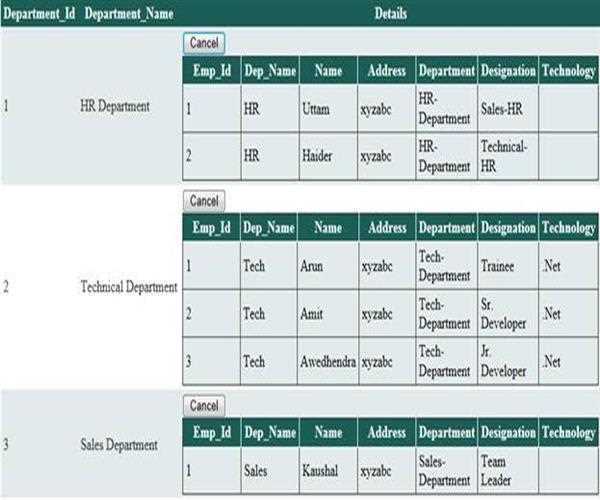
When you debug this code and click on details button then output will be
If you want sees all details of column Department_Name then you can see after clicking all details button.
Summary:
Here we are taking two gridview control first is parent gridview and the second one is child gridview control. Parent gridview control contains three category HR department,
Technical department, and sales department, and all the categories have some information which is showing in child gridview control when clicking on the Details button.


Leave Comment
6 Comments